 HitchDays
Short answer
There are three ways. Free: the person at home installs HitchDays, enters your rotation, and picks the words for the one waiting, so their countdown reads "They're home in 6 days". With HitchDays Pro: send a picture of any month to the family chat, or put your next 12 changes between hitch and home into the iPhone Calendar app. HitchDays has no account, so nothing syncs between phones on its own.
Run the same countdown on their phone
This is the free way, and it takes about a minute.
Your partner installs HitchDays on their iPhone.
When Pidge asks which situation sounds like them, they pick I never know when my partner is back.
They answer the rotation questions for you: your pattern, what kind of day today is for you, and which day of the stretch.
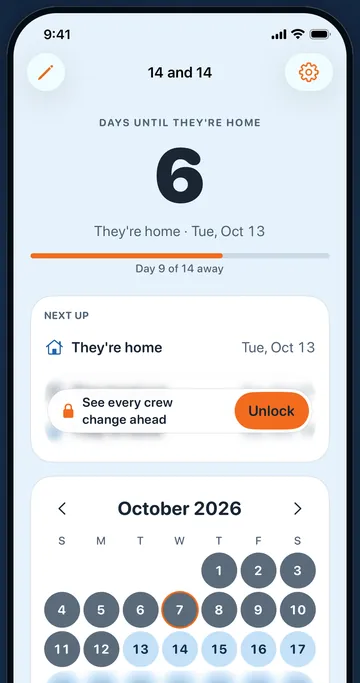
Their home screen now reads "Days until they're home", with the date and "Day 9 of 14 away".
Both phones work it out from the same rotation, so they agree. When a crew change moves, both of you change it.
Send a picture of the month
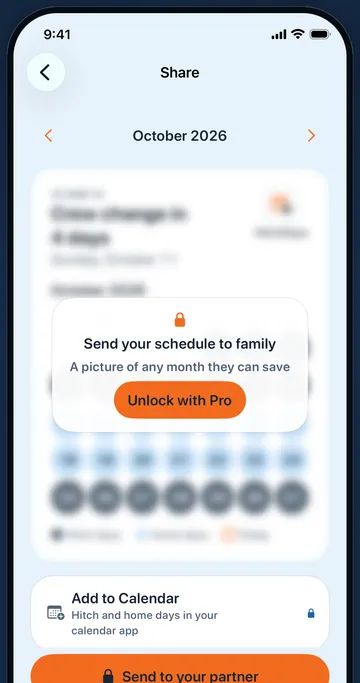
With HitchDays Pro, the Share screen turns any month into a calendar picture with hitch and home days colored, made on your iPhone. Send it from the share sheet to Messages, the family group chat, Mail, or save it to Photos. It is the easiest way to reach someone who will never install an app: grandparents, the babysitter, the crew chat.
On the free version, the Share screen shows your real month blurred so you can see what would be sent, and the send button opens HitchDays Pro. There is no free sharing allowance.
Put the changes on the family calendar
With HitchDays Pro, tap Add to Calendar on the Share screen. iOS asks whether HitchDays may add events; this is write-only access, so the app can add events but cannot read anything already in your calendar. HitchDays then adds your next 12 changes as all-day events, titled with your countdown words and the rotation's name, such as "Home: 14 and 14", in your default calendar.
If your default calendar is one you share with family through iCloud, they see the events too. To check, open iPhone Settings, find Calendar, and look at Default Calendar. Prefer to set it up by hand? The guide to putting a rotation in the iPhone Calendar app shows the repeat settings for each pattern.
When a crew change moves
HitchDays does not send updates to anyone. When your company moves a crew change or holds you over:
- Change your rotation in Edit my schedule. Your countdown and calendar follow at once.
- If your partner runs their own countdown, they change theirs the same way.
- If you sent a month picture, send a new one.
- If you used Add to Calendar, delete the old events in the Calendar app and add them again.
What sharing does not do
- It does not send a live link or update other phones by itself.
- It does not share your location, your messages, or your other calendar events.
- It does not use Apple Family Sharing; HitchDays Pro belongs to the Apple Account that bought it.