 HitchDays
Short answer
HitchDays works out your countdown from your rotation and where today sits in it, so the number is right on day 1 and on day 27 without you touching it. On day 9 of a 14 and 14 it shows 6: you're home on the day after day 14. The countdown is free, and so is the small Home Screen widget.
What the countdown screen shows
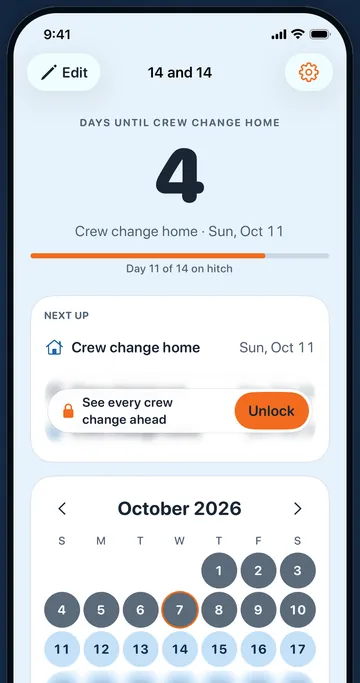
- The number. Days until home while you're on hitch; days until your next hitch while you're home. Big, heavy type, readable at arm's length on a dusty screen.
- The label, in your words. "Days until home", "Days until crew change home", "Days until your day off", or "Days until they're home".
- The date. For example "Home · Tue, Oct 13", so nobody has to work out which Tuesday.
- Where you are. "Day 9 of 14 on hitch" with a bar that fills as the hitch goes on.
- Next up. Your next three changes. The first is free; the two after it come with HitchDays Pro.
How the number is counted
HitchDays counts whole calendar days on your iPhone, in your phone's time zone. "Home" means the first day of your home stretch, so the count is the number of days from today to that date:
- Day 9 of a 14-day hitch: home is the day after day 14, which is 6 days away.
- Day 14, the last day of the hitch: 1 day.
- The first day home: the countdown switches over and shows the days until your next hitch, 14 on a 14 and 14.
The number changes at midnight and nothing else on the screen moves. Month ends, leap years, and daylight saving changes never shift a date, because the app counts calendar days, not hours.
The one thing it cannot know is a change your company makes. If you get held over or the crew change moves, open Edit my schedule and move the First hitch day; the countdown follows straight away. The guide on counting the days until home covers the travel-day question in detail.
Words that fit your house
In setup, Pidge asks which of four situations sounds like you, and the answer picks the words the countdown uses everywhere: on the home screen, the widget, the reminders, and the share picture. You can change it later in Settings under Countdown words.
| What you picked in setup | While on hitch | While home |
|---|---|---|
| My family keeps asking when I'm home | You're home in 6 days | Your next hitch starts in 14 days |
| I lose count of the days to crew change | Crew change in 6 days (home) | Crew change in 14 days (out) |
| My day off moves every week | Your next day off is in 2 days | Back to work in 1 day |
| I never know when my partner is back | They're home in 6 days | They head out in 14 days |
The countdown on your Home Screen and Lock Screen
The small Home Screen widget shows the countdown and is free. HitchDays Pro adds a medium widget that also lists your next three changes, and Lock Screen widgets. To add one, touch and hold an empty spot on your Home Screen, tap Edit, then Add Widget, and search for HitchDays. If a widget ever shows an old number, open the app once and it refreshes.
A reminder the evening before a change
With HitchDays Pro, turn on Evening-before reminders in Settings and your iPhone shows a notification at 6 pm the evening before each of your next 12 changes. They are scheduled on the phone, so they arrive on a rig with no signal. They stay off until you turn them on, and iOS asks for permission first.
What the countdown does not do
- It does not read your company's roster or hear about a holdover, weather, or a moved flight.
- It does not track the hours of a shift, only which days are hitch days and which are home days.
- It does not update on someone else's phone. Each phone keeps its own copy of the rotation.